
Guide 8 of 9
Find, share or delete past sessions
When you press Stop, the full text of the session is saved. Only you see it, until you choose to share it.
-
1Open Sessions on Home
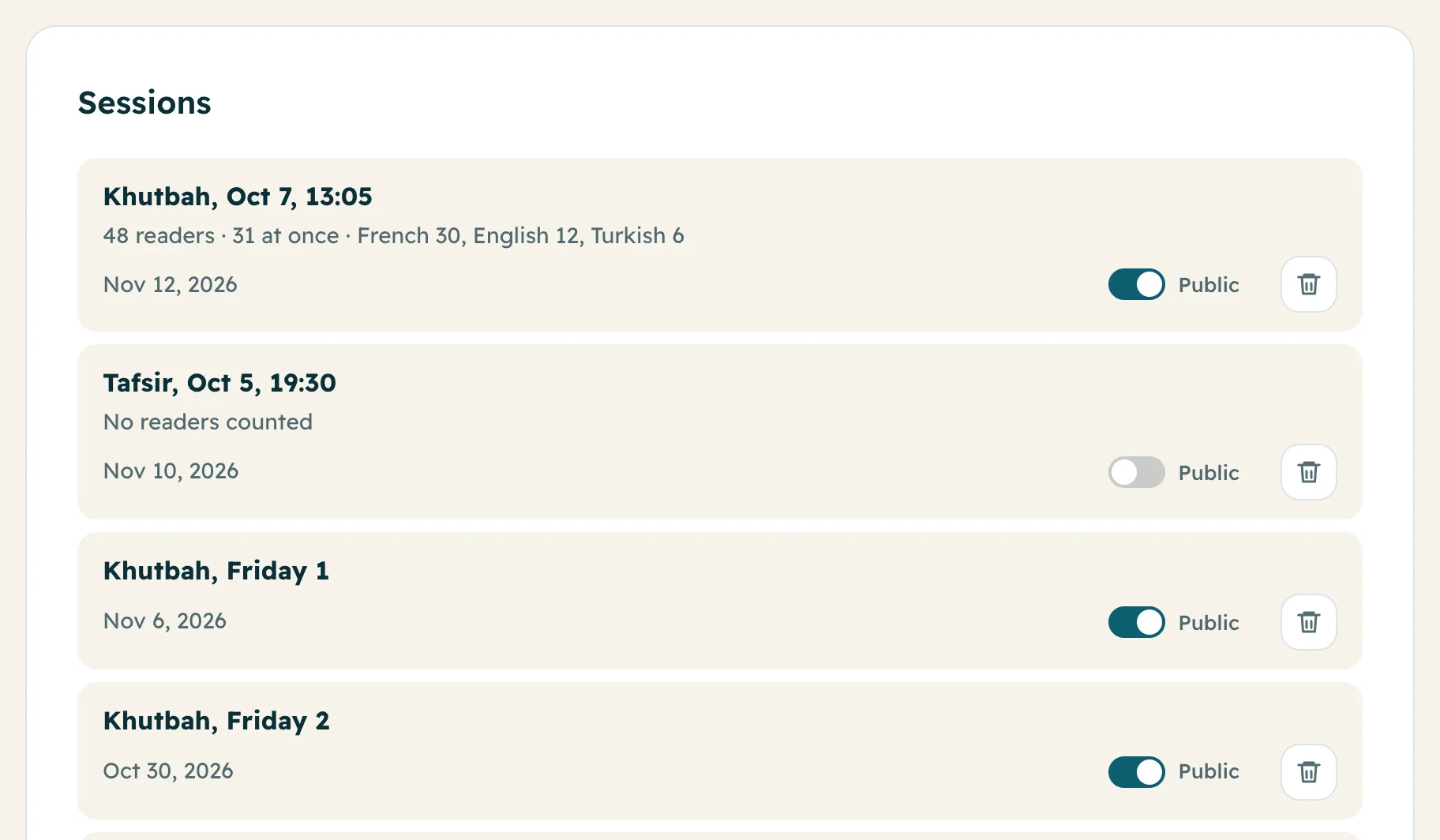
On Home, scroll to Sessions. The newest is at the top. Tap one to read the full text again, in every language.
-
2Make a session public
Sessions are private at first. Turn on Public next to a session: it shows on your public page under Past sessions, for people who missed it. Turn it off to hide it again.
-
3Delete a session
Press the bin, then Yes, delete. The text is deleted for good. The credits it used stay in your history.
-
4See how many people read
On the Lantern and Lighthouse plans, each session shows how many people read it, how many at once, and in which languages. Everyone sees reading now during the session.
Questions
Who can see my past sessions?
Only the people signed in to your organization, until you turn on Public. Room code sessions never go on the public page.
Can people listen to an old session?
Yes, if you turned on Read aloud on phones for it, readers can listen to each line.
Can I download all my data?
Yes. Press Download my data at the bottom of the app.