
Guide 7 of 9
Keep a session in the room with a room code
Use a room code for a private lesson, a meeting or anything you do not want people outside the room to follow.
-
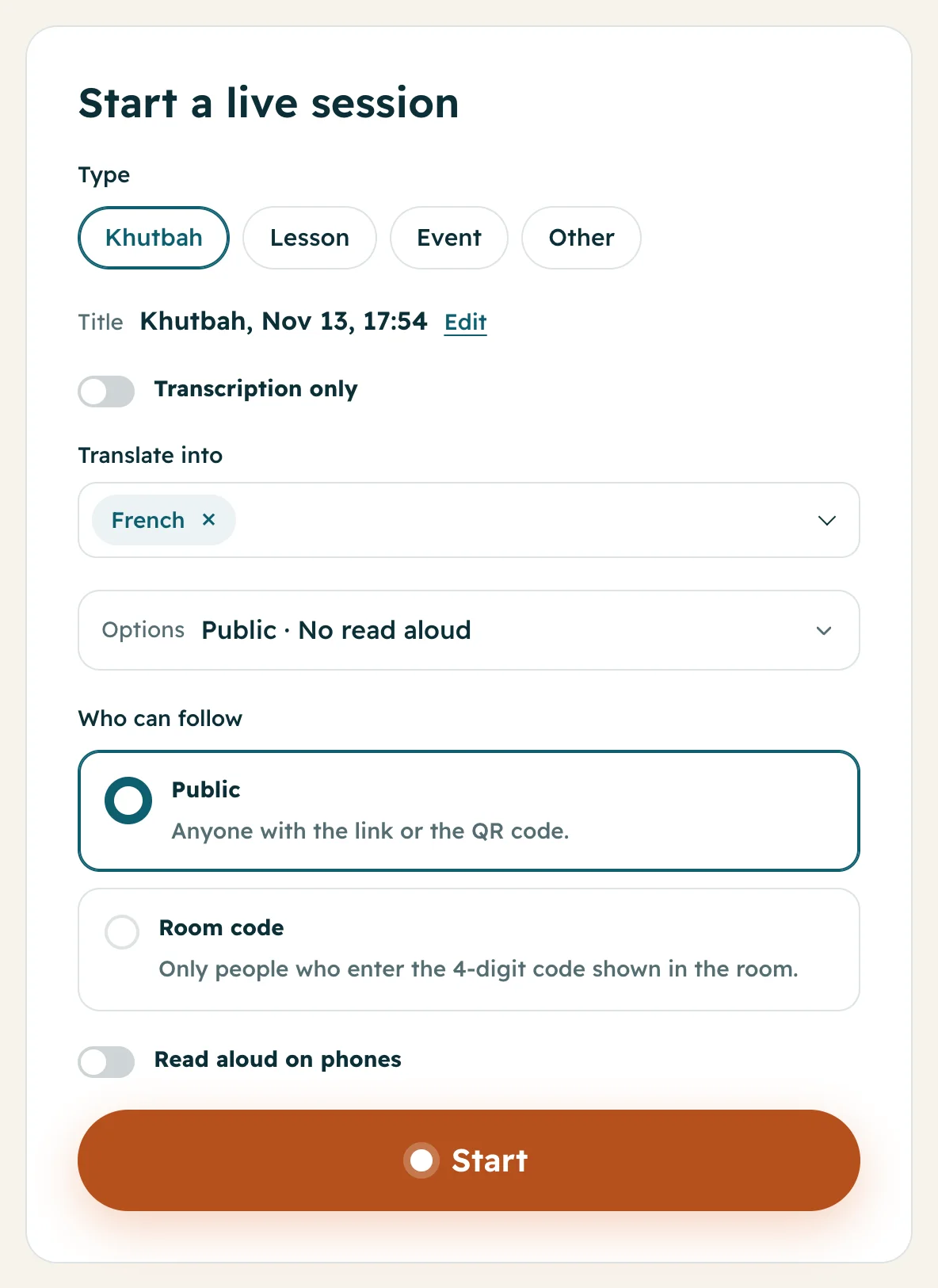
1Choose Room code before you start
On the Start a live session form, press Options. Under Who can follow, choose Room code. Then press Start.
-
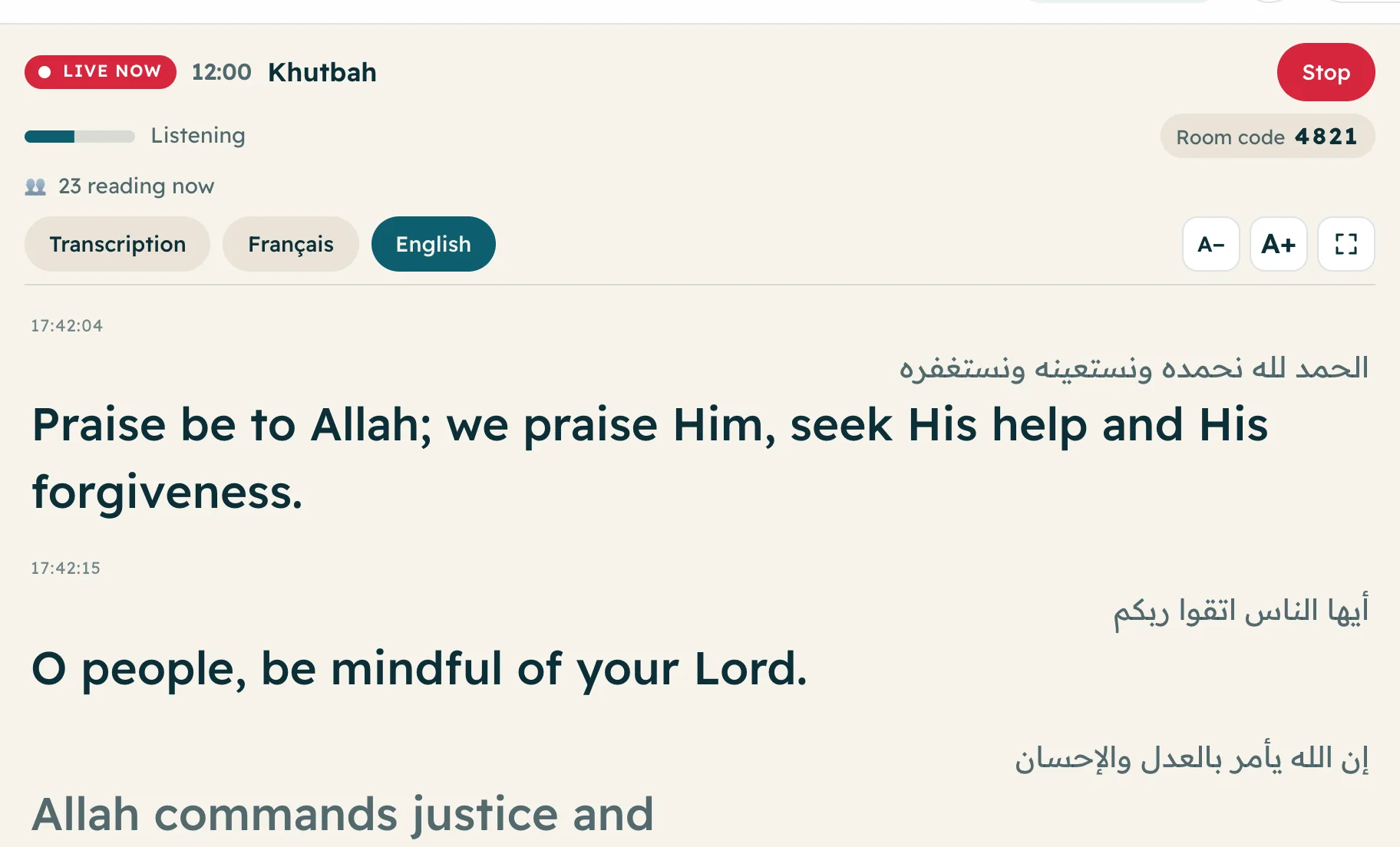
2Show or say the code
A new 4-digit code shows on the live screen, next to Room code. Write it on a board, show it on the TV, or say it out loud. Each session gets a new code.
-
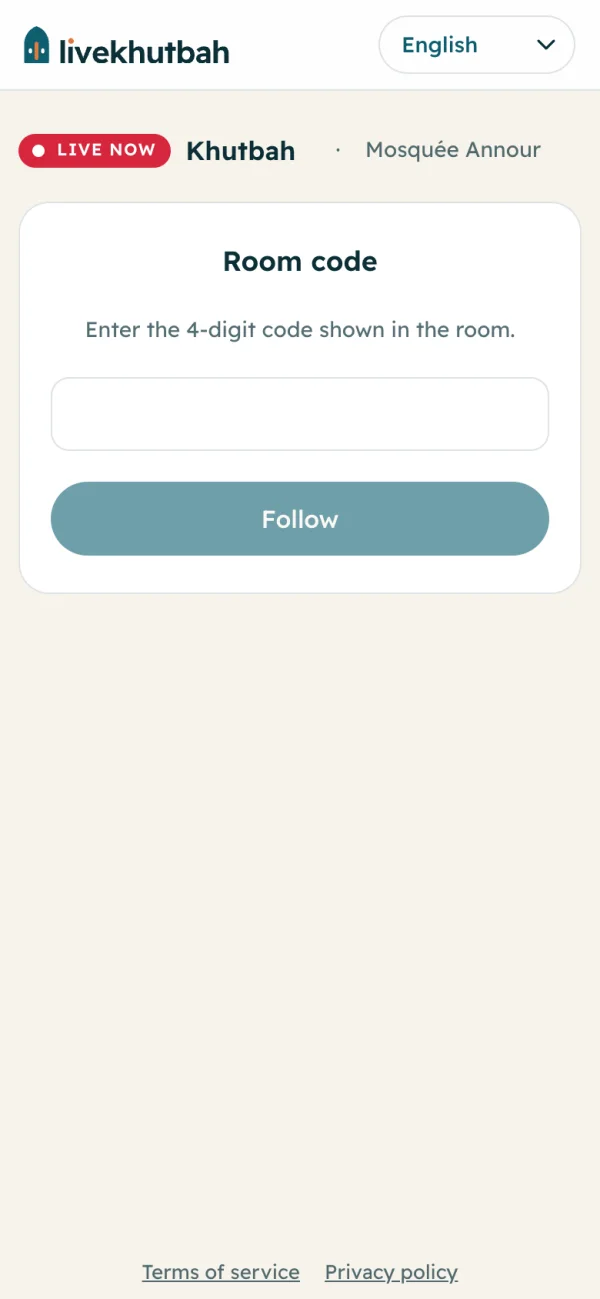
3Readers type the code
On your public page, readers press Follow. The page asks: Enter the 4-digit code shown in the room. They type it and press Follow again.
Questions
Is the code the same every time?
No. Each session gets a new 4-digit code.
Do I need the code on my own phone?
No. People signed in to your organization never need it.
Does a room code cost more?
No. The price is the same.