
Guide 6 of 9
Show the translation on the TV in your hall
A TV is optional, but it helps people who do not have their phone, and it shows everyone that the translation is on. You set it up once.
-
1Copy your TV link
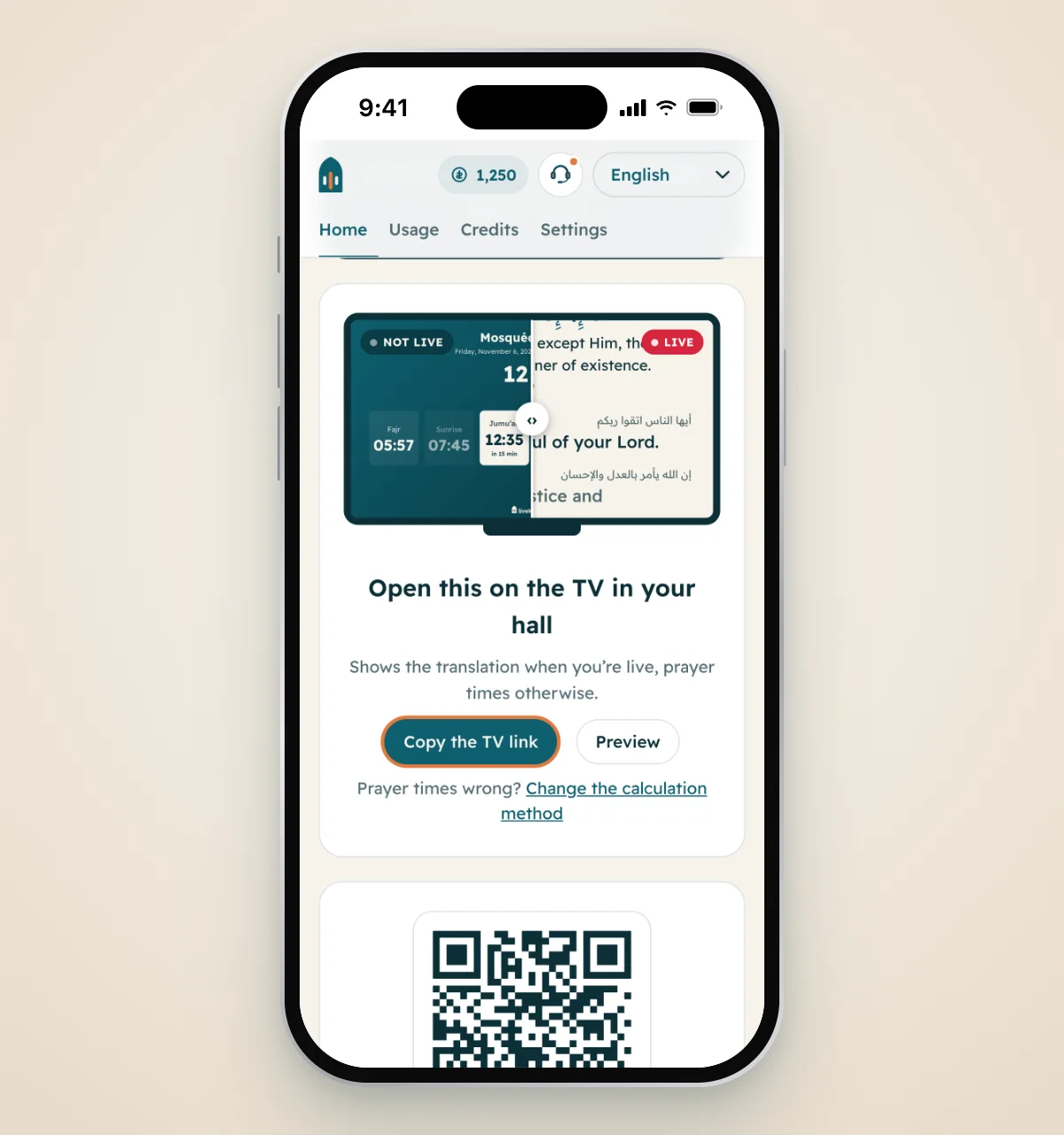
On Home, in the card Open this on the TV in your hall, press Copy the TV link. The link never changes, so you do this only once. Press Preview to see what the TV will show.
-
2Open it on the TV
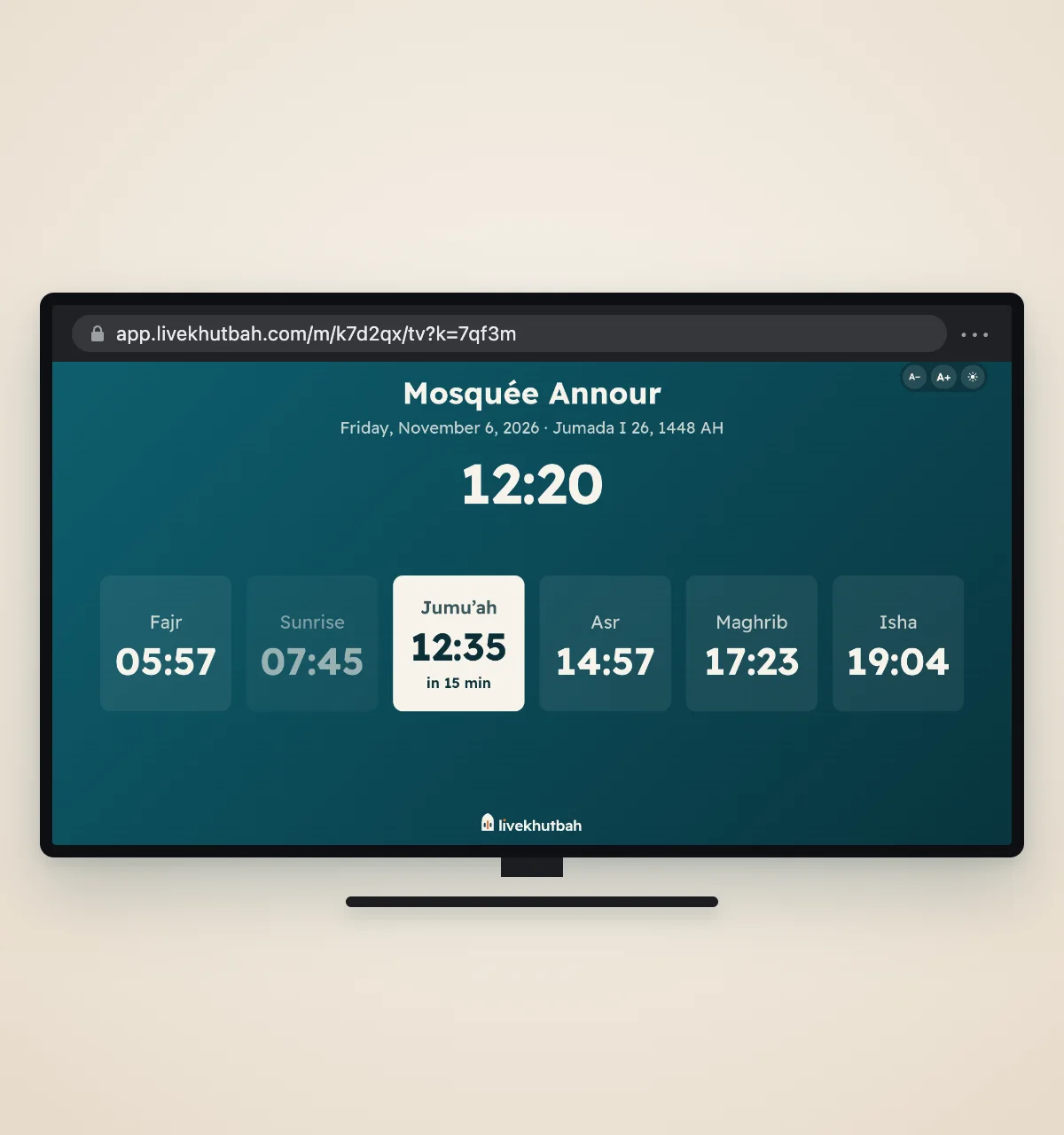
Open the link in the TV's web browser, or on a TV stick or a laptop plugged into the TV. Send it to yourself by email or WhatsApp to open it there.
For mosques, between sessions the TV shows your prayer times and the time now. It needs your City in Settings.
-
3It changes by itself
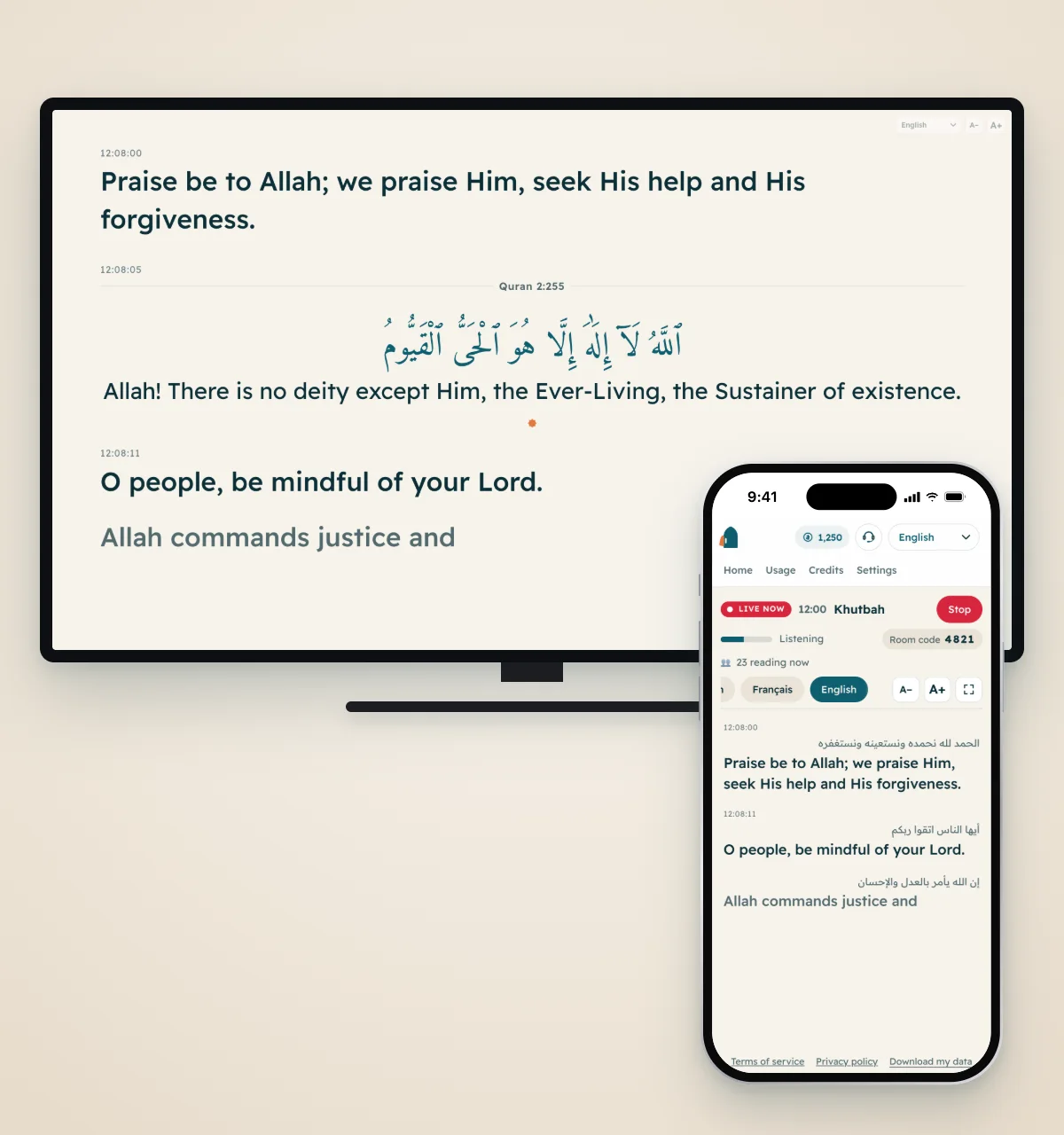
Press Go live on the phone near the speaker. The TV shows the words and the Quran verses by itself. When you press Stop, it goes back to the prayer times. Nobody has to touch the TV.
-
4Fix the prayer times if needed
Times not like your mosque's timetable? Under the TV card, press Change the calculation method. In Settings, under Prayer times, choose the method your mosque uses, then move each prayer by a few minutes or give it a Fixed time (for example Jumu'ah at 13:30).
Questions
Do I need a smart TV?
The TV needs a web browser. If it has none, plug in a TV stick or a laptop and open the link there.
Do I need to open a new link each week?
No. Leave the TV link open. It switches to the live session when you go live, and back when you stop.
Is the TV link private?
Keep it for your own screens. It contains a key that shows room-code sessions without the code.