
Guide 4 of 9
Share your QR code with your audience
Every organization has one QR code and one link. They never change, so you print them once and use them every week.
-
1Find your QR code on Home
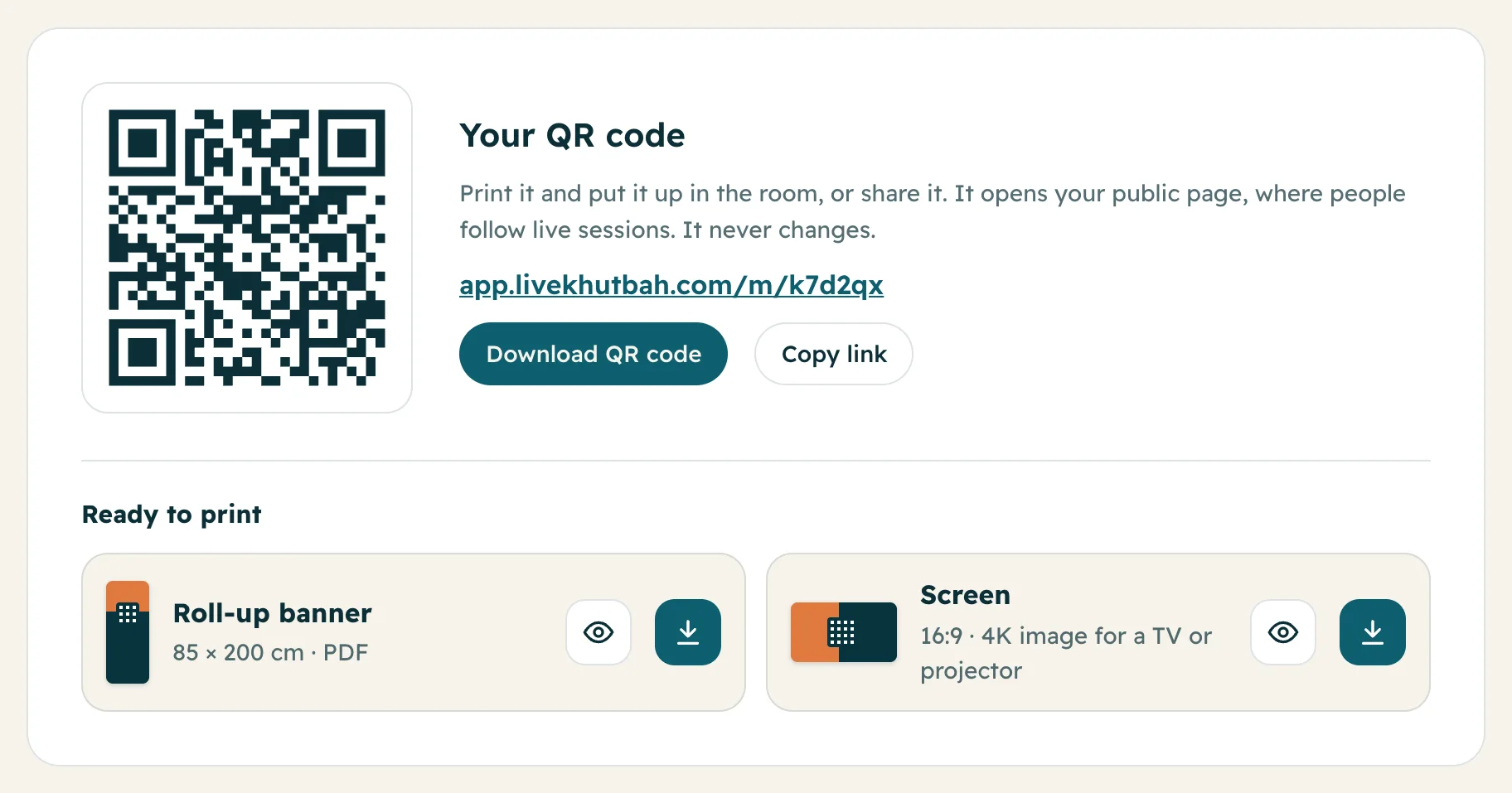
On Home, the Your QR code card shows your code and your link, like app.livekhutbah.com/m/k7d2qx.
Press Download QR code to save it as a picture, or Copy link to paste it in WhatsApp, an email or your website.
-
2Print it or show it
Under Ready to print you get two files with your QR code already on them:
Roll-up banner: an 85 × 200 cm PDF, ready to send to a print shop. Put it at the entrance.
Screen: a 16:9 4K picture for a TV or projector.
Press the eye to look at it, and the arrow to download it.
-
3What people see when they scan it
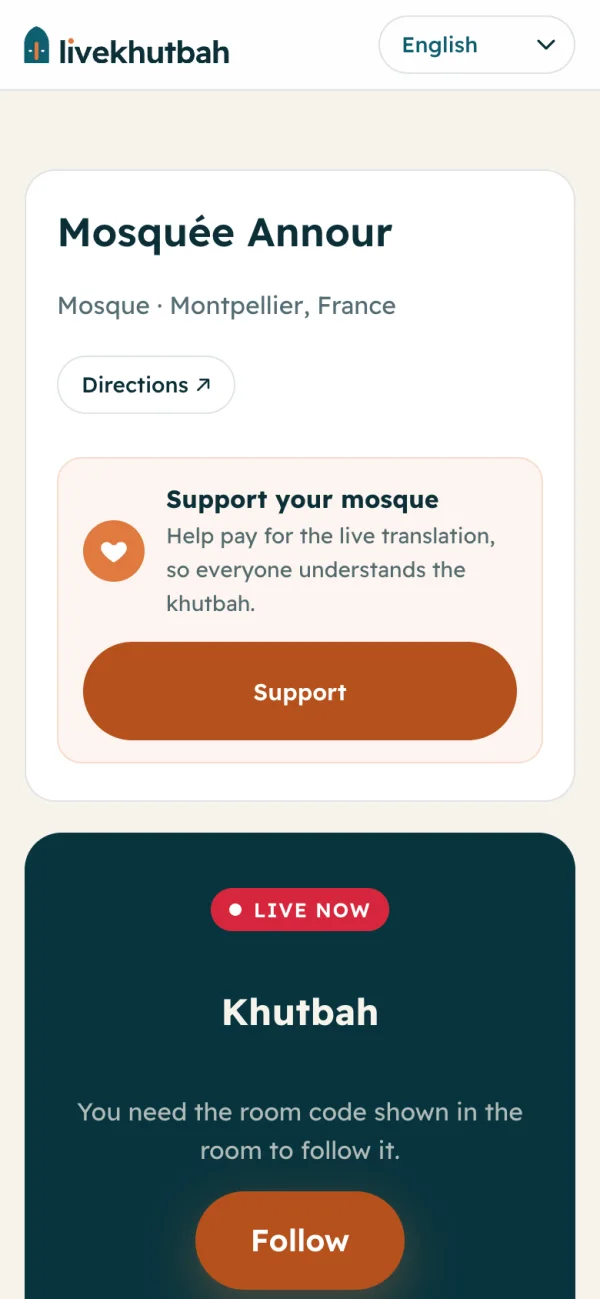
The QR code opens your public page. It shows your name, your city and, when you are live, Live now with a Follow button. Between sessions it shows your public past sessions.
People need no app and no account. They scan with the phone camera and read.
Questions
Does the QR code change for each session?
No. It always opens your public page, and the live session shows there when you go live.
Can I put the link on our website or WhatsApp group?
Yes. Press Copy link on Home and paste it anywhere.
Do people need to download an app?
No. The page opens in their phone's browser. No app, no account.