
Guide 3 of 9
Start your first live session
Do this on the phone near the speaker, with the mic plugged in. The first time, try it at home for 2 minutes with your free credits.
-
1Press Go live
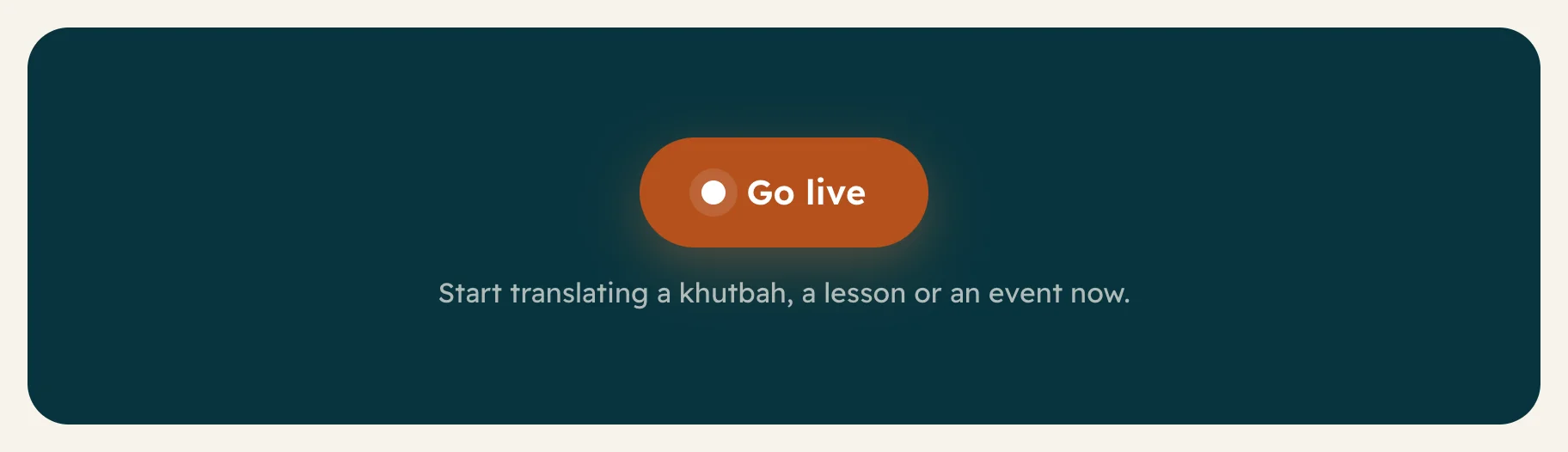
Sign in on the phone near the speaker. On Home, press Go live.
-
2Pick the type and the languages
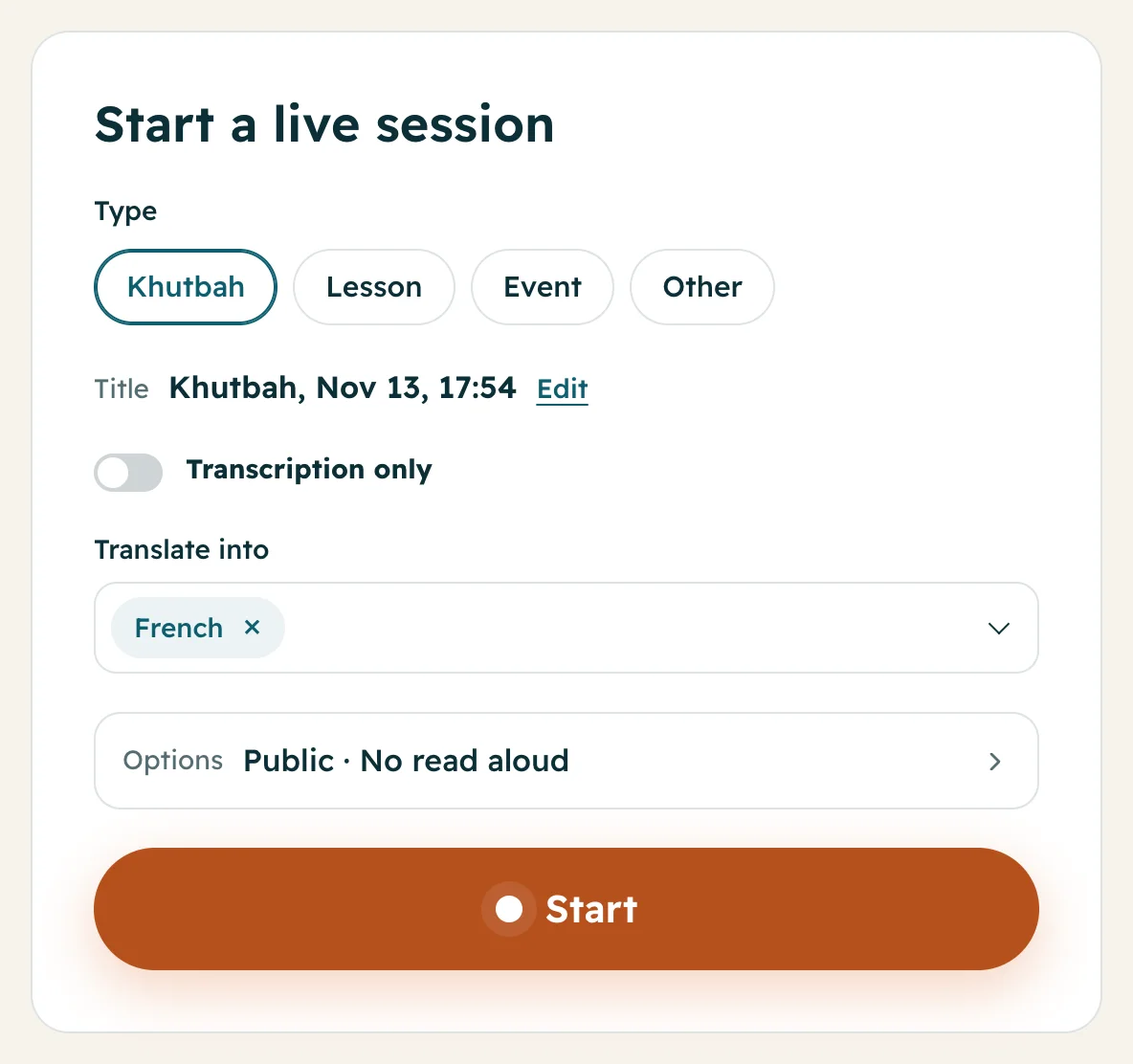
Choose Khutbah, Lesson, Event or Other. The title fills itself in with the date and time; press Edit to change it.
Under Translate into, search and add the languages people read. You do not pick the speaker's language: the app hears it by itself, even when they switch between Arabic and another language.
Want the speaker's own words only, as captions (for deaf or hard-of-hearing people)? Turn on Transcription only. It costs half the price of 1 language.
-
3Check the options
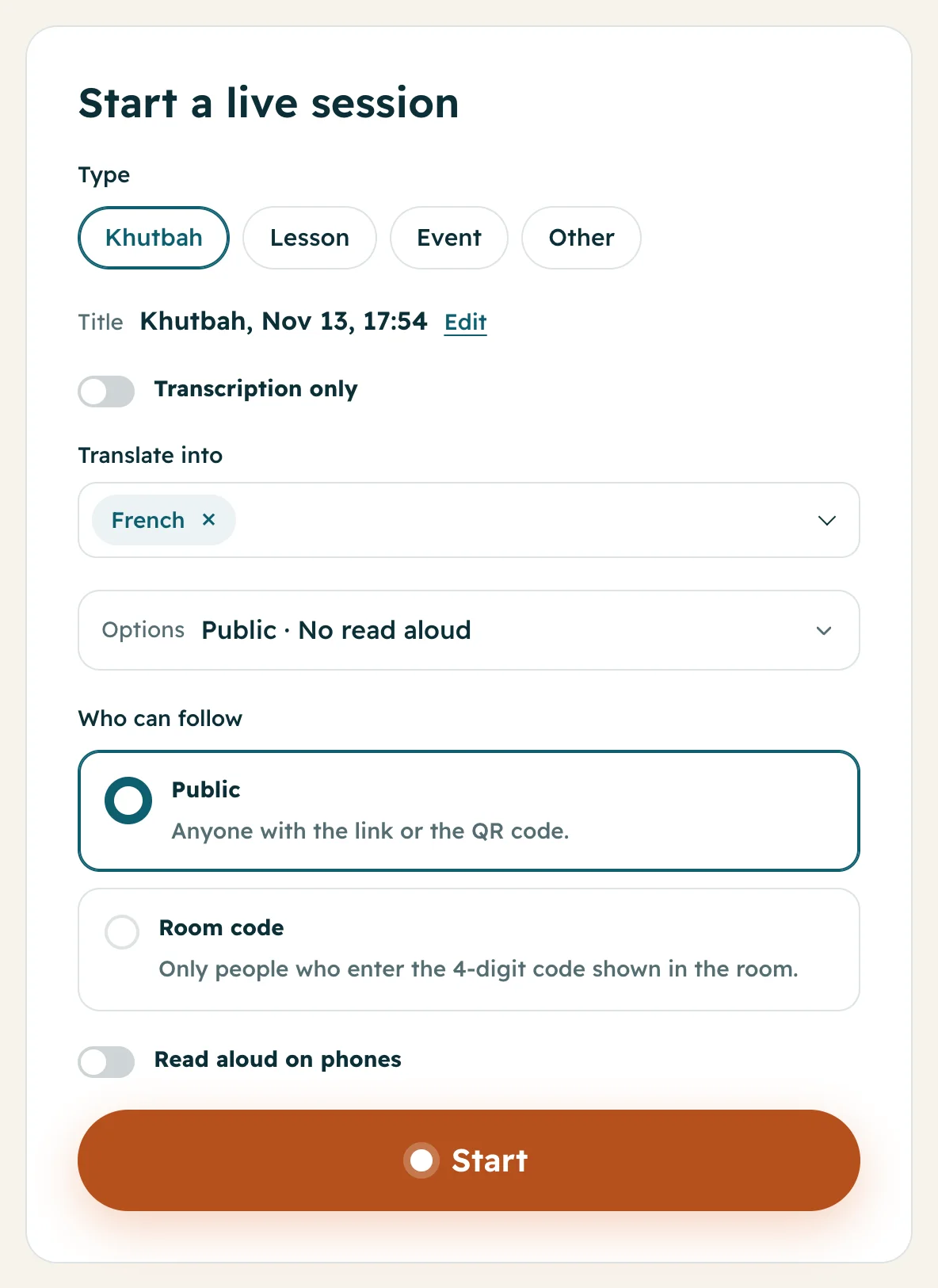
Press Options to choose Who can follow: Public (anyone with your link or QR code) or Room code (only people in the room). See Room code.
Read aloud on phones lets people listen to each line with earphones.
The app remembers your choices for next time.
-
4Press Start
The first time, the browser asks to use the microphone: press Allow the microphone, then allow it in the browser.
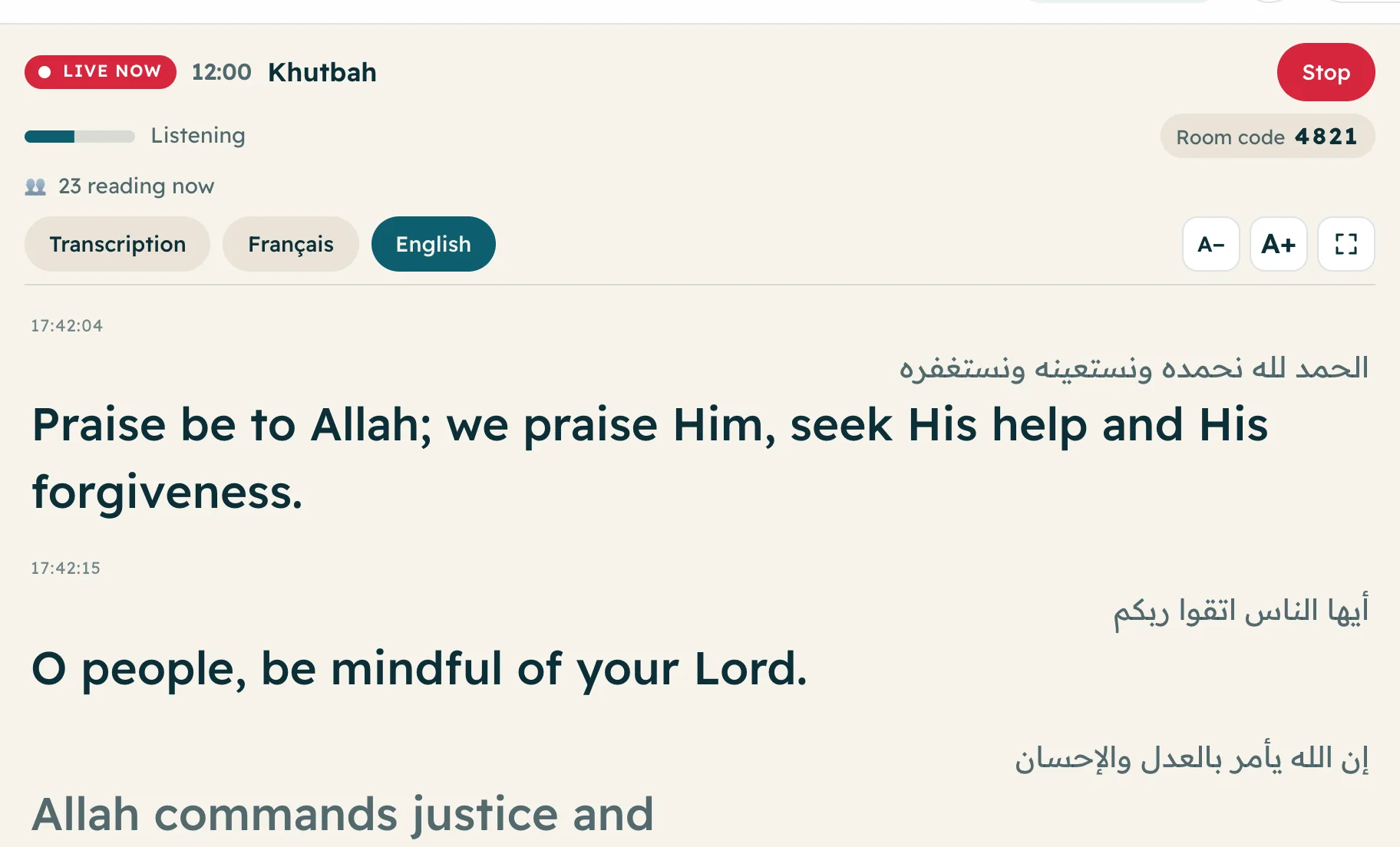
Press Start. You see Live now, a timer and Listening. Each sentence appears a moment after the speaker says it, with its translation. You also see how many people are reading now.
-
5Press Stop at the end
When the talk ends, press Stop, then Yes, stop. The session is saved in Sessions on Home.
Forgot to stop? The session stops by itself after 15 minutes without speech. Silence is never charged.
Questions
Which language does the speaker have to use?
Any. The app hears the language by itself, and the speaker can switch languages in the middle of the talk.
How many languages can I translate into at once?
Up to 3 with your free credits or the Spark plan, 6 with Lantern, and 10 with Lighthouse or once you have bought credits. More languages use more credits each minute.
The app says the microphone is blocked. What do I do?
Tap the icon next to the web address (the lock or “aA”), allow the microphone for this site, then reload the page.
What if the internet drops?
The app shows “Connection lost. Reconnecting…” and goes on by itself when the connection comes back.